
; by default.;prefix set [character] to change the prefix for your server.Setting up Voice Channels
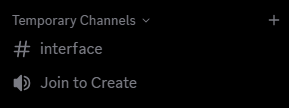
To setup custom temporary voice channels run thetemporary setup command.
Learning about the Interface
The interface will act as a remote to control your temporary voice channel.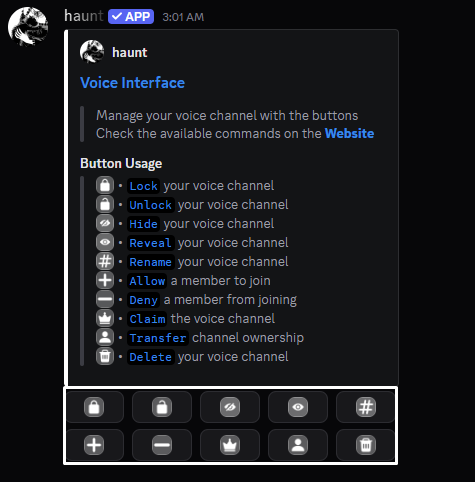
You don’t have to entirely use the interface to control your voice channel.
You can use the commands provided below or manage it using discord’s channel settings.
You can also find the commands for temporary voice channels here.

Locking your voice channel
Locking your voice channel
temporary lock command to lock your voice channel.Unlocking your voice channel
Unlocking your voice channel
temporary unlock command to unlock your voice channel.Hiding your voice channel
Hiding your voice channel
temporary hide command to hide your voice channel.Revealing your voice channel
Revealing your voice channel
temporary reveal command to reveal your voice channel.Renaming your voice channel
Renaming your voice channel
temporary name command to rename your voice channel.Changing your voice channel's region
Changing your voice channel's region
temporary region command to change the region of your voice channel.Changing your voice channel's status
Changing your voice channel's status
temporary status command to change the status of your voice channel.Changing the amount of members that can join your voice channel
Changing the amount of members that can join your voice channel
temporary limit command to change the user limit of your voice channel.Changing the video quality of your voice channel
Changing the video quality of your voice channel
temporary quality command to change the quality of your voice channel.Allowing a member into your voice chnanel
Allowing a member into your voice chnanel
temporary allow command to allow a user into your voice channel.Denying a member from your voice channel
Denying a member from your voice channel
temporary deny command to deny a user from your voice channel.Claiming an empty voice channel
Claiming an empty voice channel
temporary claim command to claim an empty voice channel.Transfering ownership of your voice channel
Transfering ownership of your voice channel
temporary transfer command to transfer ownership of your voice channel.Deleting your voice channel
Deleting your voice channel
temporary delete command to delete your voice channel.What else can I do?
You can setup default settings for the next time anyone creates a temporary voice channel!
Start out with the commands below!
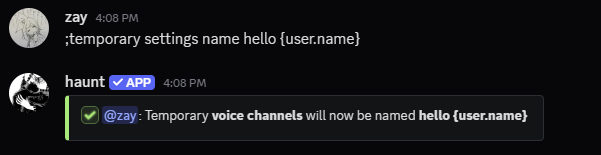
Setting a default name
Setting a default name
temporary settings name command will set every new voice channel to the name you set.Setting a default region
Setting a default region
temporary settings region command will set every new voice channel to the region you set.Setting a default bitrate
Setting a default bitrate
temporary settings bitrate command will set every new voice channel to the bitrate you set.Setting a default user limit
Setting a default user limit
temporary settings limit command will set every new voice channel to the user limit you set.Setting a different category
Setting a different category
temporary settings category command will set every new voice channel under the category you set.Resend the voice interface in new channels
Resend the voice interface in new channels
temporary settings interface command will resend the interface to created voice channels.Send privated channels to another category
Send privated channels to another category
temporary settings private command will send privated channels under the category you set.Set a default role to give to joining members
Set a default role to give to joining members
temporary settings role command will give a role to joining members.Remove the default role set for joining members
Remove the default role set for joining members
temporary settings role remove command will remove the role you set.